
Every HubSpot release now comes with a wave of AI announcements. Some of it is brilliant. Some of it is a demo that doesn't survive contact with a real sales team.
We spend our days inside HubSpot portals across New Zealand and Australia, so we see which features earn their place and which quietly get switched off. We also use them on ourselves. One of them has already replaced a tool we paid for, and another might replace a second.
This post covers the five we're recommending to clients right now, in the order a deal actually moves: from the first call, through closing, to handing the client over to the team who'll look after them.
Not all of these are AI in the robot sense. Two of them are really about structure. But all five share the same idea: a sales conversation is full of valuable context, and the CRM should capture it, organise it and put it in front of whoever needs it next, without anyone retyping it.
1. HubSpot Notetaker
In a sentence: A meeting notetaker built into your CRM, so every call lands on the right record with a summary, actions and a draft follow-up.
Best for: Anyone who lives on calls · Available on: All plans, including free · Credits: No
Why we rate it
We used to run Fathom across the whole team. It made sense: our workshops are long, and the sales and discovery process covers a lot of ground we can't afford to lose. Once HubSpot's own notetaker was up and running, we cancelled our Fathom licence.
Having the notetaker inside your CRM makes a tonne of sense. It starts transcribing straight away and adds each call to everything already logged against that contact, so the meeting sits alongside the emails instead of in a separate app nobody checks.
And here's the bit that matters most: that transcript is organisational memory. Every AI feature in this post now has the exact conversation to work from, not just a rep's notes written up at 5pm.
How it works
- Joins your Zoom, Google Meet or Microsoft Teams calls.
- Records the call, with the video and full transcript saved to the meeting record in HubSpot.
- Writes a meeting summary and pulls out the pain points and challenges that came up.
- Lists the actions agreed on the call.
- Lets you share the recording, or draft a follow-up email to the attendees, ready for you to review and send.
There's also an in-person notetaker in the HubSpot mobile app, for anyone whose best conversations happen across a table rather than on a screen. Next on HubSpot's roadmap: making Notetaker available through its MCP connection, which means you'll be able to ask your favourite AI tool, like Claude or ChatGPT, about what was said on any call.
Use cases
- Discovery calls - An hour-long scoping call with three stakeholders. The rep stays present in the conversation, and the follow-up is drafted before they've closed the laptop
- Long workshops - A half-day process mapping session. Nothing depends on whoever was taking notes that day
- In-person meetings - A site visit or showroom conversation. The mobile notetaker captures it, so face-to-face context doesn't live only in someone's head
Watch-outs
Tell people you're recording. Let attendees know a notetaker will be on the call, and add a line to your meeting invites. Recording rules vary between New Zealand and Australian states, so check your obligations.
Review before you send. The drafted follow-up is a great starting point, not a finished email.
Quick win: Switch Notetaker on for your own calendar this week and let it handle your next five calls.
2. Deal Progression
In a sentence: It reads your sales conversations and suggests what should happen next, from updating the deal to drafting the follow-up.
Best for: Consultative sales teams · Available on: Sales Hub or Service Hub, Professional or Enterprise · Credits: Only for custom properties
Why we rate it
Recording a meeting is the easy part. The hard part is making sure the CRM reflects what was agreed, while the conversation is still fresh. Deal Progression does that job. Notetaker captures the conversation, and Deal Progression turns it into updates and actions.
Instead of relying on a rep to remember every detail after the meeting, HubSpot suggests updates based on what was actually said: budget, timeline, next step, deal stage. It's one of the features our sales team would miss most.
It doesn't stop at meetings either. Deal Progression also watches the emails between calls, recommends next best actions and drafts replies.
How it works
- Notetaker (or a supported meeting platform) captures the call.
- Deal Progression analyses what was said.
- It suggests property updates, recommends next steps and drafts a follow-up.
- The rep stays in control: approve or reject each suggestion, edit the draft, and save action items as tasks.
You choose whether it runs on every meeting or only on certain types, like discovery calls and demos. It can also fill in the qualification fields your sales methodology uses, and log call and meeting outcomes automatically.
Which properties to use it on
The best candidates are the fields your sales team should be updating after every call but usually doesn't.
Pro tip: Next step, Deal description and Deal stage don't use any credits. Turn those on today. There's no reason not to.
Custom properties are different. They use credits every time Deal Progression runs, even if it doesn't suggest anything. So be selective about which ones you add, and consider limiting them to the meeting types where they'll actually come up.
Use cases
- Post-meeting follow-up - The buyer asks for pricing and a proposal. Specific commitments become specific tasks, not good intentions
- Less manual CRM entry - A call confirms the budget and a go-live date. The fields are suggested for you, so the pipeline report is actually right
- Sales coaching - A manager reviews a stalled deal
They can see whether buyer commitments turned into next steps, based on what was actually said
Watch-outs
It suggests, you decide. Build the habit of reviewing suggestions daily, or they'll pile up.
Your pipeline needs to be set up well first. If your deal stages are vague, its suggestions will be too.
Quick win: Turn on the three free fields (Next step, Deal description, Deal stage) for one pipeline this week.
3. Deal Plans
In a sentence: A shared plan between you and your buyer that turns "what needs to happen before we can sign?" into clear milestones, owners and dates.
Best for: Complex or multi-stakeholder sales · Available on: Sales Hub Professional or Enterprise · Credits: No
Why we rate it
Most sales checklists are internal. A deal plan is shared. Your buyer gets their own portal where they can see, add, edit and complete milestones, so both sides are working from the same map.
Each milestone has an owner (you or the buyer), a due date, a status, and room for notes and links. Sales managers can build reusable templates for different pipelines, so reps aren't starting from scratch.
It's not AI in itself. But paired with Deal Progression, HubSpot can suggest updates to the plan based on what was said in your latest call.
Use cases
- Multiple decision-makers - Sponsor review, finance approval, executive sign-off. Everyone can see who's holding things up, without anyone having to say it.
- Procurement and compliance - Vendor questionnaire, security review, legal review. Surfaces the steps that usually blow out a signing date
- Stalled opportunities - Agree the next buyer action, owner and date. Replaces vague "just following up" emails with a concrete next step
Watch-outs
Don't use it for quick sales. If the buyer has nothing meaningful to do before purchasing, a deal plan is overkill.
Keep it short. Five to eight milestones. More than that and it starts to feel like homework.
Quick win: Build one template for your most common deal type and use it on your next three proposals.
Prefer to read this as a PDF? Download the full guide, The HubSpot AI Features We Actually Use, and keep it for your next pipeline review.
4. Smart Properties
In a sentence: A normal HubSpot property with an AI prompt behind it. Instead of someone typing the answer, AI reads your conversations and data and writes it in for you.
Best for: Handing context from Sales to Customer Success · Available on: Starter and above · Credits: Yes
Why we rate it
Deal Progression captures the operational fields Sales needs. But a sales conversation holds much richer context than budget and timeline: the customer's goals, their worries, what success looks like to them, and what your team promised to get the deal over the line.
That's exactly what your Customer Success team needs on day one, and it's usually buried in an hour-long transcript nobody has time to read. Smart properties pull it out and put it on the record where everyone can see it.
The end result is still a normal CRM property. It can be edited by hand, used in segments, reports and workflows, and it doesn't replace manual entry. The difference is AI has done the extracting for you.
Where the answers come from
- Activities and transcripts: emails, calls, meetings and notes on the record.
- Property data: what's already in your CRM.
- The company website.
- Web research: public information about the company or contact.
Our favourite use: the Sales to Customer Success handover
When a deal closes, your Customer Success lead opens the company record and immediately sees:
No reading transcripts. No searching Slack. No asking Sales. A one-hour conversation becomes knowledge that's always visible.
Get better answers: use AI to improve AI
HubSpot gives every smart property a default prompt. It works, but the output is often long and hard to scan. One of our favourite tricks is asking Breeze Assistant to rewrite the prompt for you. The improved version is shorter, easier to read and uses the customer's own language.
Sample prompt: Customer goals Using the meeting transcripts, emails and notes on this record, list the customer's top three business goals for this project. Write each as one short sentence, in the customer's own words where possible. Start each with a verb. If a goal wasn't clearly stated, write "Not discussed" rather than guessing.
When should it run?
You've decided what AI writes. Now decide when it writes it. There are five ways to fill a smart property:
- Trigger: When a record is created
- Best for: Getting context in from day one
- Action: Research the company's sub-industry as soon as a new company record appears
- Trigger: On a schedule
- Best for: Keeping one AI field fresh
- Action: Refresh "Customer concerns" every month
- Trigger: As part of a workflow
- Best for: "If this happens, do several things, maybe differently depending on the result"
- Action: Only fill "Customer goals" after a discovery call or demo, then alert the account owner if a concern is flagged
Watch-outs
They use HubSpot credits. Every fill uses credits. See the credits explainer below.
Test small first. Run a new smart property on a handful of records and check the answers before you roll it out across your database.
Write tight prompts. Vague questions get vague answers. Ask for a fixed format, and tell it what to say when the answer isn't there.
Quick win: Build a "Customer goals" property, run it on your last five closed deals, and show your Customer Success team.
It's a one-time setup. After that, it runs on its own.
HubSpot credits in plain English
Some of HubSpot's AI features run on credits, a usage allowance that sits on top of your licence.
What uses them
Features where AI does work for you, like smart properties, agents and custom properties in Deal Progression.
What doesn't
Deal Progression on Next step, Deal description and Deal stage.
The catch
Some features use credits every time they run, even if they don't find anything to update.
What you get
Starter includes 500 credits a month, Professional 3,000 and Enterprise 5,000.
If you run out
You can buy add-on credit packs.
Our advice: start small, check your usage after the first month, and only then switch features on across your whole database. A smart property running on 50,000 contacts adds up quickly.
5. Work Management (Beta)
In a sentence: Projects, tasks and requests that live right next to your CRM data, so the work your team does is connected to the customers it's for.
Best for: Delivery, onboarding and content teams · Available on: All plans, including free · Credits: Only for AI agents
Why we rate it
For years we've had the same conversation with clients: "HubSpot isn't a project management tool. You'll need a separate licence and an integration." We've said it about our own business too. We run delivery in Asana.
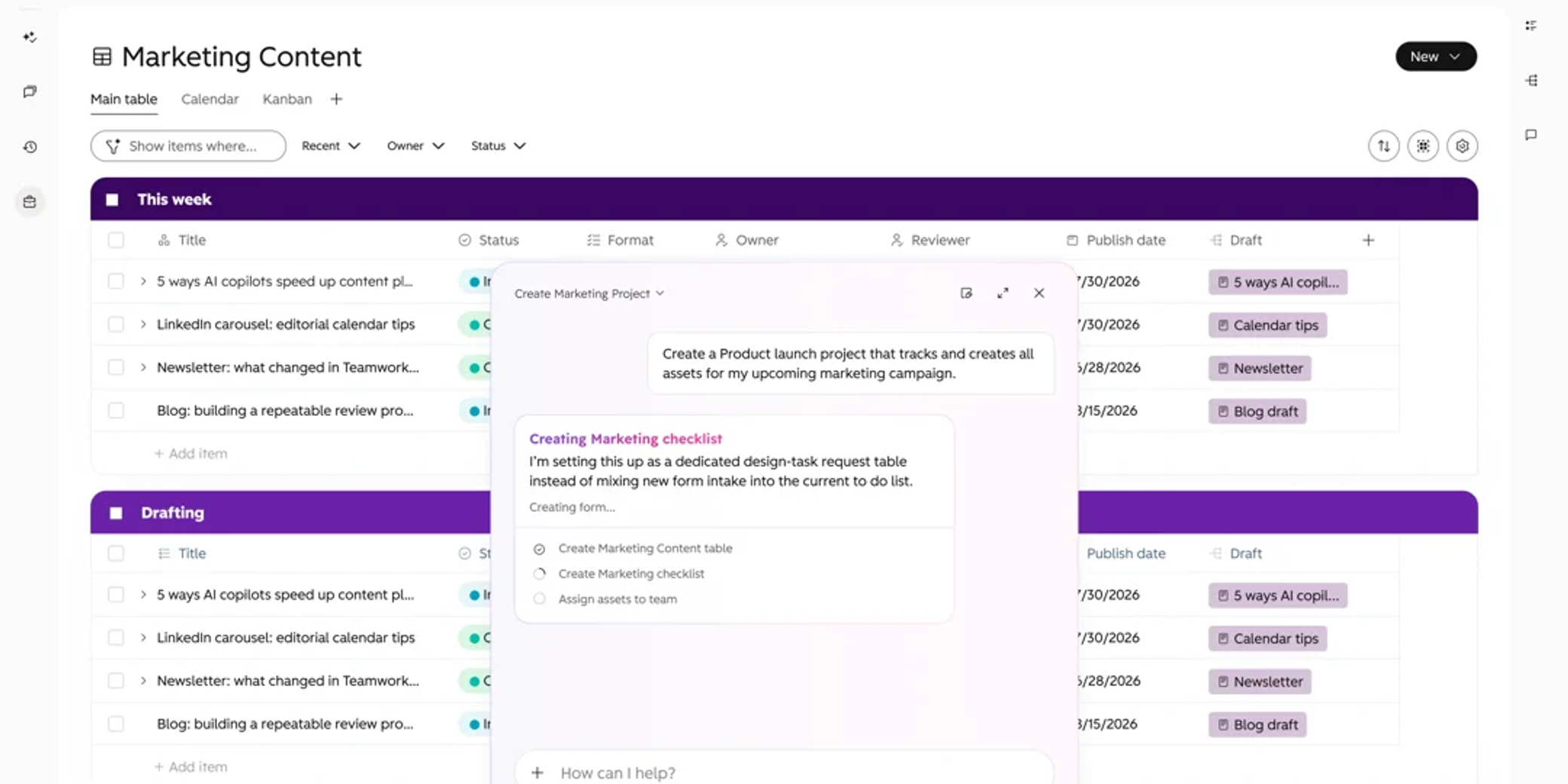
HubSpot has been edging into this space for a while, and Work Management, announced at UNBOUND 2026, is its biggest step yet. Even better, it's built into HubSpot's core CRM, so it's available on every plan, including free. No separate licence, no integration. It's still in beta, but if it delivers on what we've seen so far, it could replace our Asana licence the same way Notetaker replaced Fathom.
The simplest way to think about it:
- The CRM is the source of truth for your customers: contacts, companies, deals and conversations.
- Work Management is the source of truth for the work you do for them: projects, tasks, campaigns, onboarding and requests.
What's inside
- Projects and tables - Organise a body of work and track it like a flexible spreadsheet
- Items and subitems - Tasks and checklists
- Views - Table, calendar and board (Kanban)
- Forms - Collect requests that automatically create work
- Documents - Briefs, plans, notes and recaps
- Workflows and agents - Automate the predictable, and let AI handle summaries, sorting and research
- CRM associations - Keep every piece of work linked to its deal, company and contacts
Use cases
Why it helps: Sales to delivery handover
A deal hits Closed Won: A workflow creates an onboarding project, assigns an owner, adds standard tasks, links the deal and company, and notifies the team. The smart properties from section 4 are already on the record.
Nothing gets lost between the person who sold it and the people delivering it
Client or campaign delivery: Every new engagement starts from the same template: brief, strategy, production, review, client feedback, launch, reporting, recap. A consistent starting point without rebuilding it each time
Content production: A board moves each piece from idea to briefed, drafted, reviewed, approved, scheduled and published
The whole pipeline is visible, and owners get nudged when something's blocked or overdue
Watch-outs
It's in beta. Expect changes, and don't move your whole operation over on day one. We're not.
It won't replace a specialist tool for everyone. If you run complex resource planning or detailed time tracking, test it carefully before you cancel anything.
Quick win: Pilot it on one repeatable process, like client onboarding, before you go any wider.
Putting it together: one deal, start to finish
After a proposal meeting, the buyer says: "Send the revised scope by Friday. I'll get finance approval next week. What matters most to us is cutting our quote turnaround in half."
- Notetaker - Captures the conversation and summarises the commitments
- Deal Progression - Suggests the next step, drafts the follow-up with the revised scope, and recommends moving the deal stage
- Deal Plans - Suggests two milestone updates: "Seller: revised scope by Friday" and "Buyer: finance approval"
- Smart Properties - Writes "Halve quote turnaround time" into Customer goals and "Revised scope by Friday" into Sales commitments
- Work Management - When the deal closes, a workflow spins up the onboarding project, and the Customer Success lead starts day one already knowing why the client bought
Five features, one conversation, and almost nothing typed by hand.
Where to start: a 30-day rollout
- Switch on Notetaker for the sales team: Everything else builds on the transcript
- Turn on Deal Progression for Next step, Deal description and Deal stage: Instant value, no credits
- Build a "Customer goals" smart property and test it on five closed deals: Learn how credits behave before you scale, and win over your Customer Success team
- Create one deal plan template, and pilot Work Management on client onboarding: Close the loop from signature to kickoff
Want to see these working in a real portal?
Book a free 30-minute walkthrough. We'll show you all five features in action, tell you which ones are worth switching on for your team (and which aren't), and flag anything that needs tidying up in your portal first.

Written by
Sean Towson
Managing Director / Senior HubSpot Specialist